Styling a report
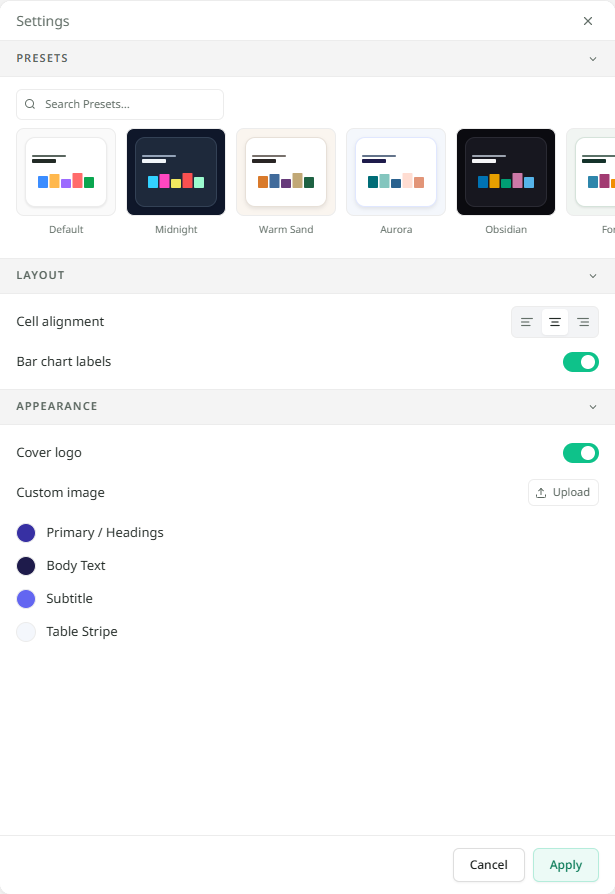
The Style panel, labels on bars, a logo for this report.
Overview
The Style panel changes how a report looks: the colours of its headings and text, how numbers sit in its tables, whether bars show their values, and the logo on its cover. Use it to match your brand, or to make a report clearer for the people who will read it.
Only the owner of the session can style a report. Open the report in its tab and click Style at the top of the session, beside Export and Update.
Using a preset
- Click Style.
- Under Presets, click one. Your organisation's own templates come first, under Organisation.
- Click Apply to keep it, or Cancel to go back.
Presets for reports come from the same Style templates as dashboards, so a report can match the dashboard it came from.
Changing the details
| Setting | What it does |
|---|---|
| Cell alignment | Lines up the contents of every table to the left, centre or right. |
| Bar chart labels | Shows or hides the value at the end of each bar in the report's bar charts. |
| Primary / Headings | The colour of headings and the accents that go with them. |
| Body Text | The colour of the running text. |
| Subtitle | The colour of subtitles. |
| Table Stripe | The shade on every other row of a table, which makes long tables easier to follow. |
Bar chart labels help when readers need the exact number. Turn them off when a chart has many bars and the numbers crowd each other. The setting carries across when you export to Word. See Exporting to Word.
A logo just for this report
A report's cover carries your organisation's logo. You can change that for one report without touching the others. Under Appearance:
- Turn off Cover logo to leave the cover without a logo.
- Use Custom image to upload a different picture, such as a client's logo for a report you are sending them. PNG, JPG or WebP.
- Click the reset button beside it to go back to the organisation's logo.
What's in a report shows where the logo sits on the cover.