Asking questions
Where to ask, what to ask, how long an answer should be, and what Mira says when the data isn't there.
Overview
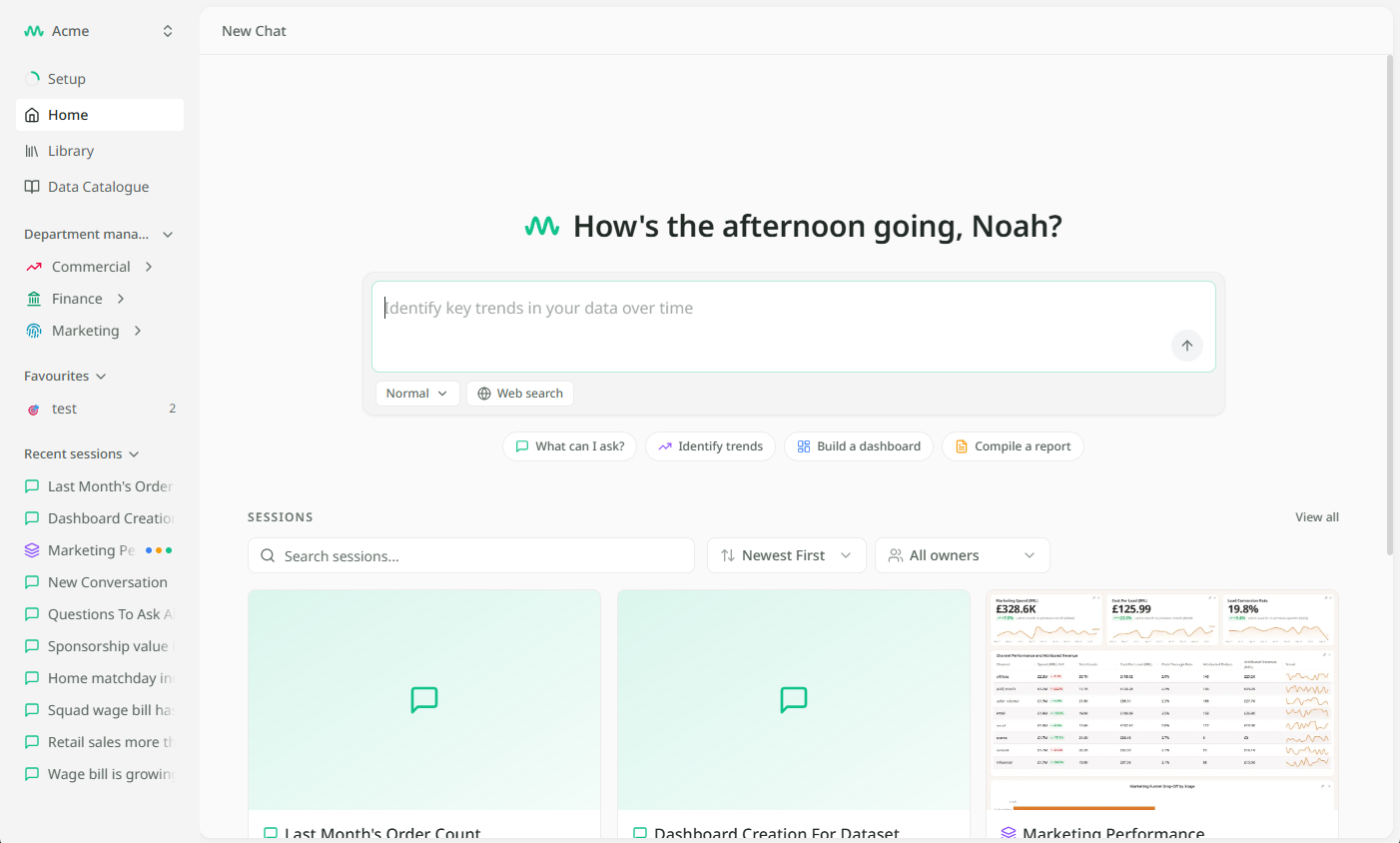
Mira answers questions about your organisation's data. You ask in plain English, in the box on the home screen, and Mira looks the answer up in the tables your organisation has connected or uploaded. You do not need to know where the data lives or how it is arranged. If it is in a table you can see, you can ask about it.
Every answer comes back with the tables it used and the working behind it, so you can check any number. Reading an answer explains what to look for.
Where to ask
There are two places.
- The home screen. The box at the top. This is where a new piece of work starts. Your first message opens a new session, and everything you make from that question onwards lives there. See Chats and sessions.
- Inside a session. The chat on the right of a dashboard or report. Ask here to build on what is already open: add a chart, change a figure, write it up.
Press Enter to send. Shift + Enter starts a new line.

What to ask
Ask the way you would ask a colleague who knows the numbers. A good question names a thing, a measure and a time.
| Try | Rather than |
|---|---|
| How is gross margin tracking against the plan this quarter? | Margin |
| Which wholesale accounts are past their payment terms? | Show me wholesale |
| Compare web store revenue this August with last August. | Revenue over time |
You can ask for more than a number. Ask for a chart and you get one. Ask for a dashboard of your most important measures, or a report of trends and findings, and Mira builds it in the session. Follow-ups work too: "now split that by channel" picks up where the last answer left off.
Suggested starts
Under the box are four starting points. They are ordinary questions, written out for you.
- What can I ask? lists what you have access to.
- Identify trends asks Mira to look across your tables for what is changing.
- Build a dashboard asks for your most important measures as charts.
- Compile a report asks for a written summary of trends and findings.
Click one and it goes into the box as a question, so you can change it before sending.
Choosing how long an answer is
The Normal menu beneath the box sets the length of the answer.
| Choice | What you get |
|---|---|
| Normal | The answer, the reasons behind it, and a suggestion for what to look at next. |
| Concise | The answer and little else. Good for a quick check. |
| In depth | The full working, with each step explained. Good for something you will share or defend. |
The choice sticks for the chat, so a concise chat stays concise until you change it.

Web search is off unless you turn it on. With it on, Mira may look outside your organisation for context, for example an exchange rate or a market figure. Searching costs more credits than a normal question, and the answer marks anything that came from the web. Searching the web has the detail.
When the data isn't there
Mira only answers from your tables. If nothing you can see holds the answer, Mira says so rather than guessing. That is deliberate: an answer you cannot trace is not an answer.
When that happens:
- Ask What can I ask? to see which tables you have.
- Check whether the data has been uploaded or connected yet. A table can exist in your organisation without being one you can see; your department lead can grant it.
- Try naming the table you have in mind. Pointing at a table shows how.