Your first question
Sign in, ask, read the answer, get a chart, find it again.
Overview
This page walks through your first five minutes in Mira. Someone at your company has invited you, and you are ready to start. By the end you will have asked a question, read the answer, made a chart, and know where to find it again.
Signing in
Your invitation arrives by email. Open Mira and sign in with the same email address the invitation went to.
The first time, Mira greets you with Welcome to MIRA and lists Your invitations. Click your organisation's name to join. You land on the home screen, ready to ask.
If the page says Nothing's waiting for you yet, you have probably signed in with a different email address. Sign out and try the address the invitation went to, or ask the person who invited you to check it. Invitations and organisations has more.
The home screen
The home screen is where new work starts. In the middle is a greeting and the box you type in. Under the box are four suggested starts. Your recent sessions appear beneath them, once you have some.
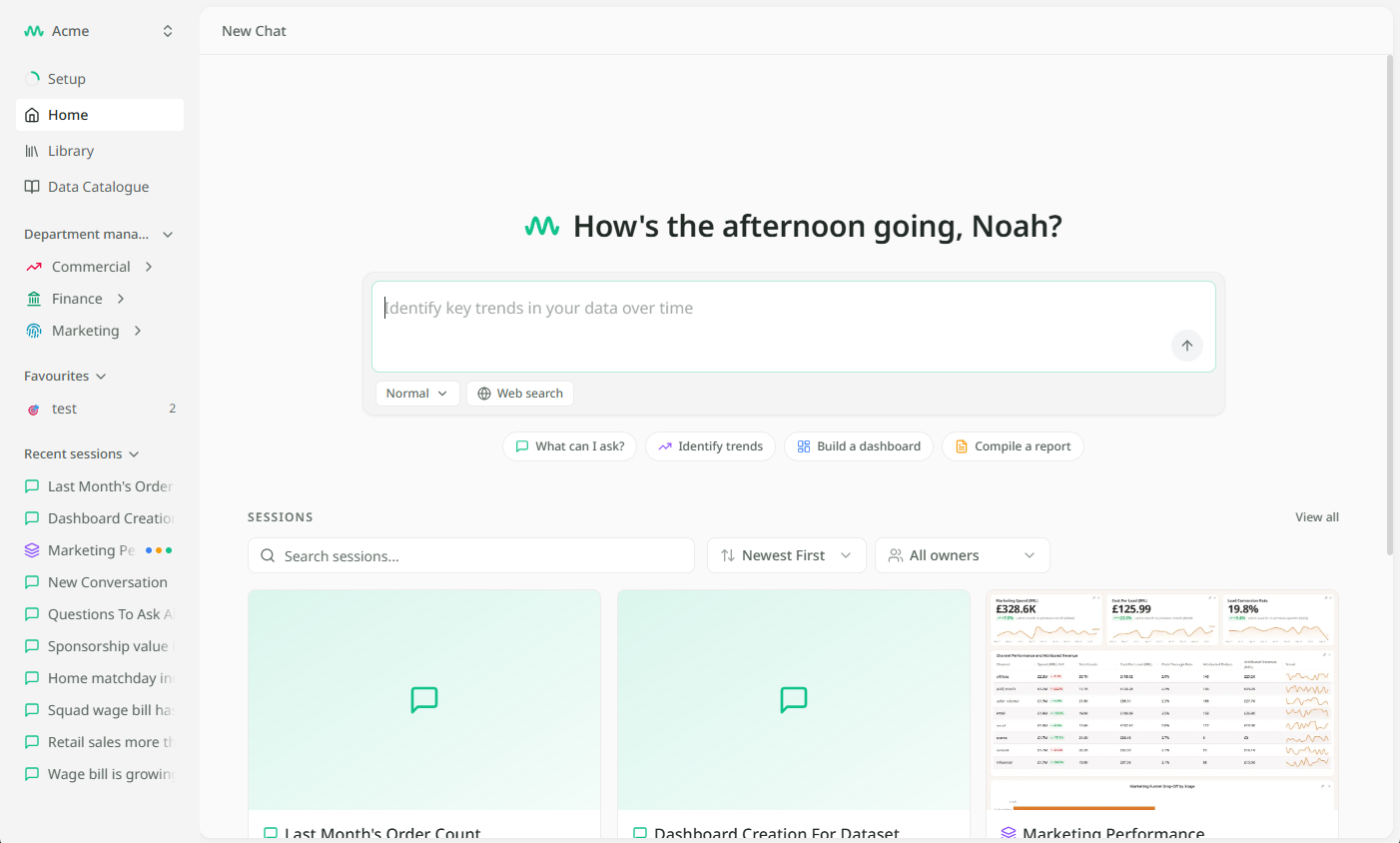
On the left is the sidebar. Home brings you back here. Library holds everything you make. Data Catalogue shows every table you can ask about. Your organisation's name sits at the top, and opens a menu with Settings and Log out.
Asking your first question
Type a question and press Enter. Ask the way you would ask a colleague who knows the numbers. A good question names a thing, a measure and a time.
Priya, in Sales at Kestrel Outdoor, asks: "How is web store revenue this month compared with last month?"
Your first message opens a new session. Everything you make from here on is kept in it. Asking questions has more on what to ask.
Reading the answer
The answer comes back in a few parts, from the top:
- What Mira did. A line or two saying which tables it read. Click to see the detail.
- The answer. The words, with the important figures marked.
- A next step. Often a suggestion for what to ask next.
Click any marked figure to see where it came from: the tables it used and the calculation, in plain English. Reading an answer explains each part.
Getting a chart onto the canvas
Now ask for a chart. Priya types: "Chart that by week."
Mira draws the chart and puts it straight onto the session's canvas, which opens on the left. There is nothing else to do. Each chart you ask for joins it, and the chat stays on the right so you can keep going.
To keep the canvas as a dashboard you can share, click Unsaved at the top right and give it a name. Building a dashboard shows how.
Finding it again
Everything you made lives in the session, and Mira names the session from your first question. Three places lead back to it:
- The sidebar. Your recent sessions are listed on the left, newest first.
- Home. Beneath the box.
- The Library. Every session, dashboard, report and chat you have, with search.
Open the session and it is just as you left it. See Chats and sessions.