Members and access
Inviting someone into departments, the three access levels, changing access, removing someone.
Overview
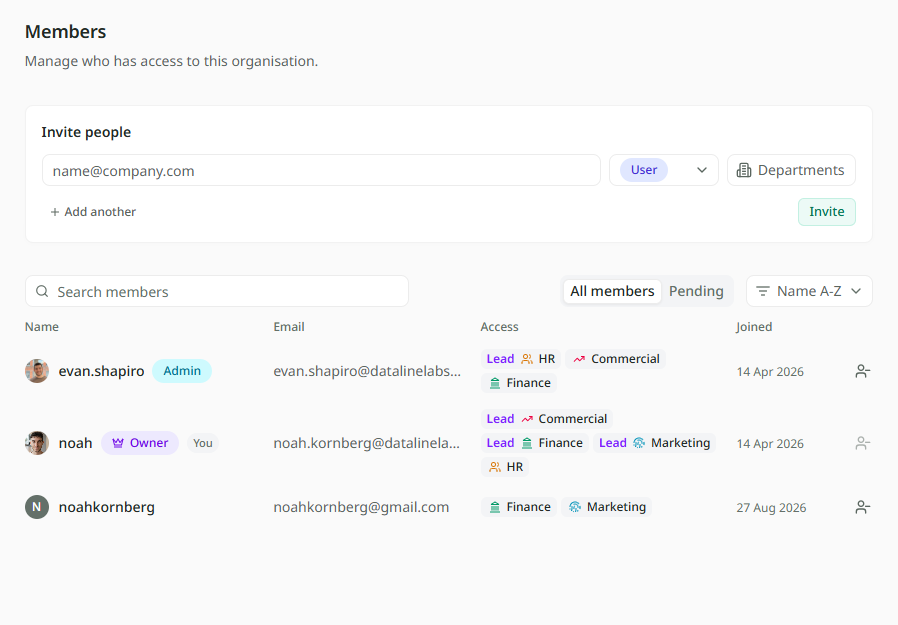
The Members page is the list of everyone in your organisation. Owners and Admins use it to invite people, decide what they can do, and remove them. Open the organisation menu at the top of the sidebar, choose Settings, then Members.
Each person has two kinds of standing: their organisation access (Owner, Admin or User) and a role in each department they are in (Lead, Maintainer or Member). This is the one page where you can see and change both. How departments work explains the two side by side.
Inviting someone
- In the Invite people section, type their email address.
- Choose their access: Admin or User. Most people are Users.
- Open the departments picker and use Add department for each department they should join. Choose their role in each. It starts on Member.
- To invite several people at once, click Add another and fill in the next row.
- Click Invite.
Under each row, Mira spells out what the invite gives, so you can check it before you send. To bring Priya into Kestrel Outdoor, the Admin invites her as a User, and adds Finance and Sales, as a Member of each. When she accepts, she lands in both departments.
The three access levels
Owner, Admin and User set what someone can do across the whole organisation. Owners and Admins manage members, shared sources and settings, and can see every table. Users see the tables of the departments they are in. An invite can make someone an Admin or a User, but not an Owner. The full comparison is on How departments work.
Changing someone's access
Click a person's row to open User Permissions.
- Under Organisation, change their access level. Making someone Admin or Owner asks you to confirm first.
- Under Departments, change their role in each department, take them out of one, or use Add department to put them in another.
Each change saves as soon as you make it. You cannot change your own access.
Pending invites
The Pending tab lists invites not yet accepted. You can change an invite's access or its departments until the person accepts. To cancel an invite, use Revoke.
Removing someone
Use the remove mark at the end of a person's row and confirm with Remove member. They lose access to the organisation and every department in it at once. You cannot remove yourself.
To take someone out of one department but keep them in the organisation, change their departments in User Permissions instead.