Settings overview
The settings sidebar, what each section is for, and who sees it.
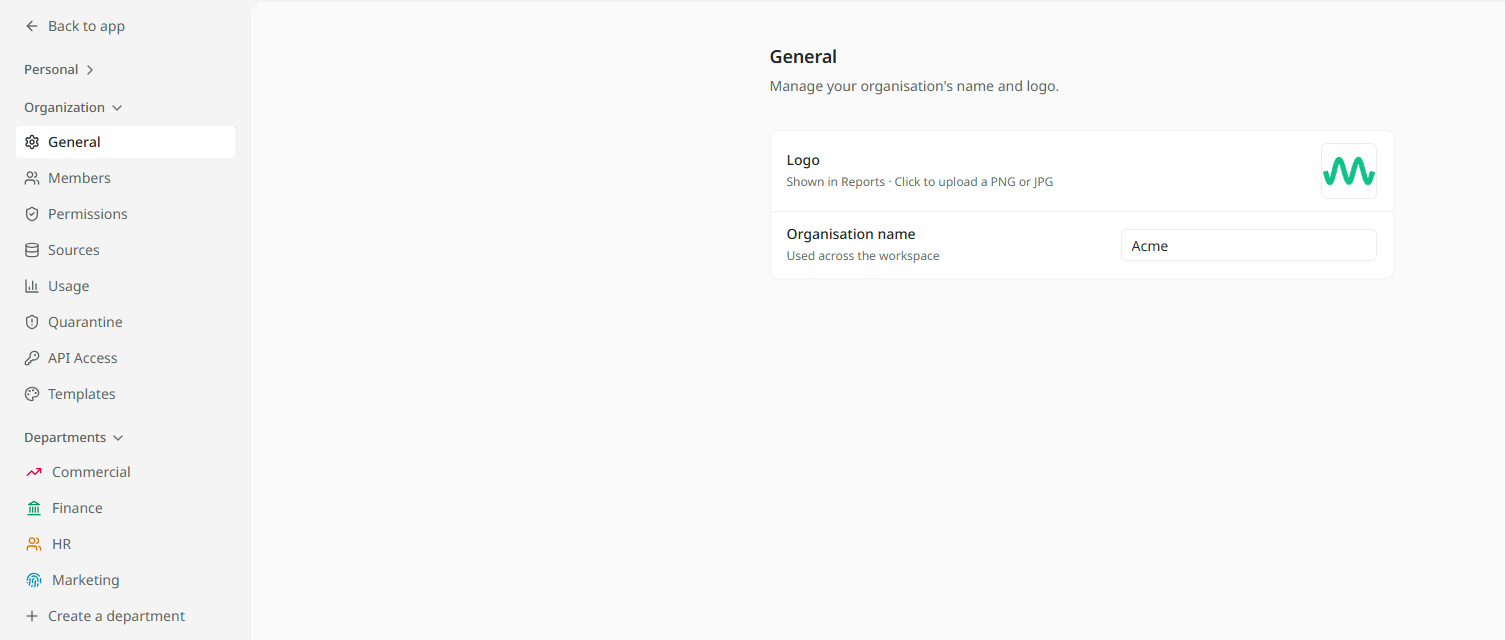
Overview
Settings is where your organisation is run: who belongs to it, which systems are connected, how credits are being used, and the house style for dashboards and reports.
Getting to Settings
- Click your organisation's name at the top of the sidebar. A menu opens.
- Choose Settings. It opens on your Profile, with the settings sidebar on the left.
- Pick a section from the sidebar.
- When you are done, click Back to app at the top of the sidebar.
Someone without Owner or Admin access can still lead a department. They look after it from the department's own pages, not from Settings. See How departments work.
The settings sections
The sidebar has three groups.
| Section | What you can do there |
|---|---|
| Profile | Change your name, picture and theme, and sign out. See Profile and preferences. |
| General | Set the organisation's name and logo. The logo appears on report covers. |
| Members | Invite people, set their access level, and remove them. See Members and access. |
| Permissions | Turn on organisation-wide switches, such as letting department leads invite new people. See Permissions. |
| Sources | Connect systems and upload files for the whole organisation, then choose which departments see each table. See Shared sources. |
| Usage | See how many credits have been used, by whom, and how many are left. See Usage and credits. |
| Quarantine | Review uploads that were held because Mira couldn't read them. See Held uploads. |
| API Access | Create keys so your own systems can send data to Mira. See API keys. |
| Templates | Make house styles for dashboards and reports. See Style templates. |
| Departments | Open any department's settings, or click Create a department. See How departments work. |
Profile sits under Personal. The departments are listed by name under Departments. Everything else is under Organization.