Profile and preferences
Name, picture, theme, signing out.
Overview
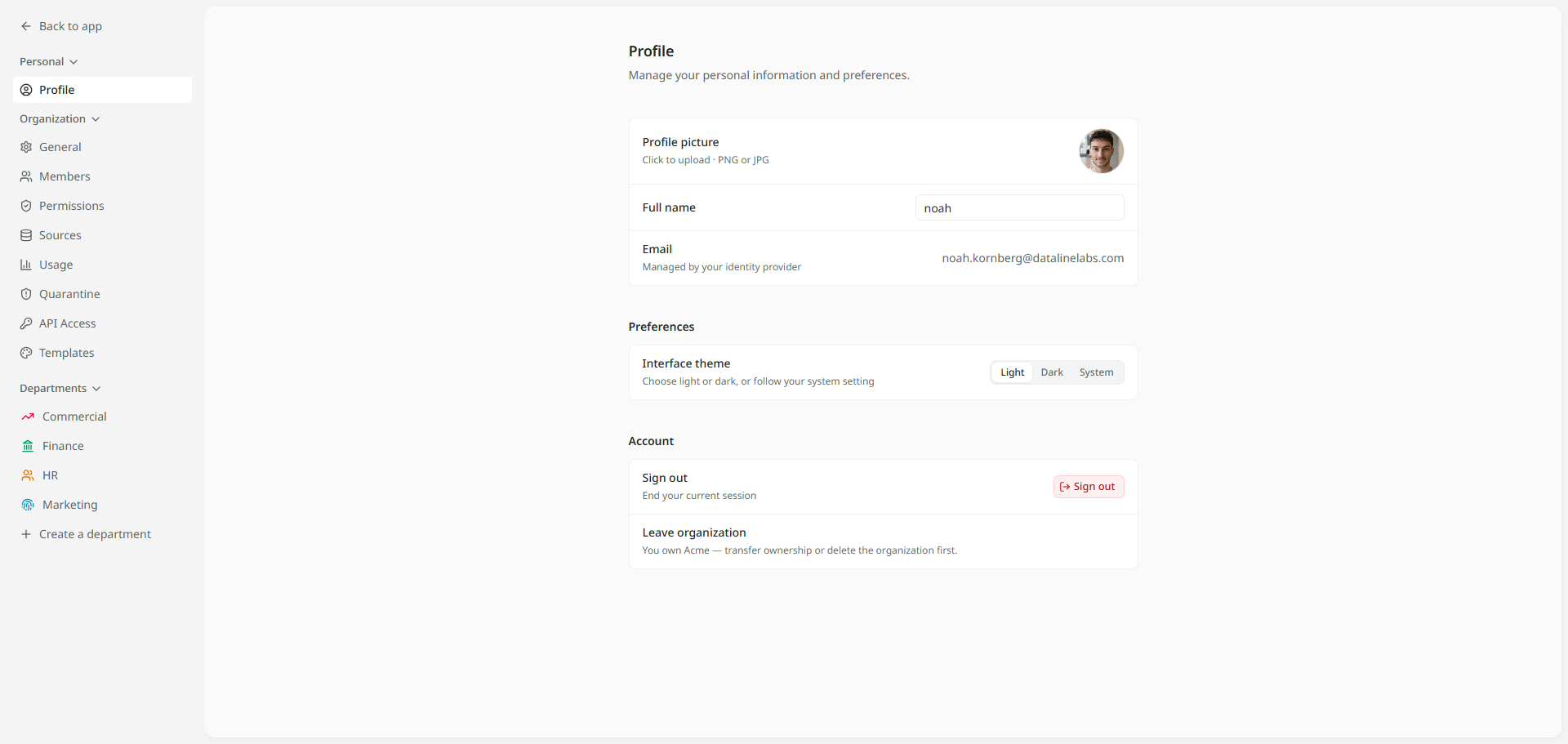
Your profile is how colleagues see you in Mira: your name and your picture. The same page holds your preferences and the way to sign out. Open it from your organisation's name at the top of the sidebar, then Settings. Profile is the first page.
Your name and picture
- Profile picture. Click the circle and choose a PNG or JPG image.
- Full name. Type your name as colleagues know it.
Changes save on their own a moment after you make them, and Mira confirms with Changes saved. Your name and picture then show wherever colleagues see you, for example in your organisation's list of members.
Your Email is shown but cannot be changed here. It comes from the account you sign in with.
Choosing a theme
Under Preferences, Interface theme has three choices:
| Choice | What you get |
|---|---|
| Light | Mira in light colours, whatever your computer is set to. |
| Dark | Mira in dark colours. |
| System | Mira follows your computer, switching when it does. |
The change applies straight away and only affects what you see. Mira remembers it in this browser, so on another computer you may need to choose it again.
Signing out
There are two ways out.
- From the menu under your organisation's name, at the top of the sidebar, choose Log out.
- On the Profile page, under Account, click Sign out.
Both sign you out straight away. Your sessions, dashboards and reports are kept, and are waiting when you sign back in.
The same Account group holds Leave organization. Invitations and organisations explains what leaving means.