What's in a report
The cover, the contents, the sections and figures, and the findings and risks Mira calls out.
Overview
Every report Mira builds has the same shape, whatever it is about. Knowing the parts helps you read one quickly and ask for changes precisely. "Move the risk callout into section 2" works because Mira uses the same names you see here.
A report is laid out as A4 pages, so the screen matches the export.
The parts, in order
| Part | What it is |
|---|---|
| Cover | Your organisation's logo, the kind of report, the title, a subtitle and the period it covers. At the foot: who it is by, the tables it draws on, and a classification such as Internal. |
| Table of Contents | The numbered sections, one per line. |
| Sections | Numbered headings, each with sub-headings and the writing beneath. |
| Tables | Numbered Table 1, Table 2 and so on, with a total row where one makes sense. |
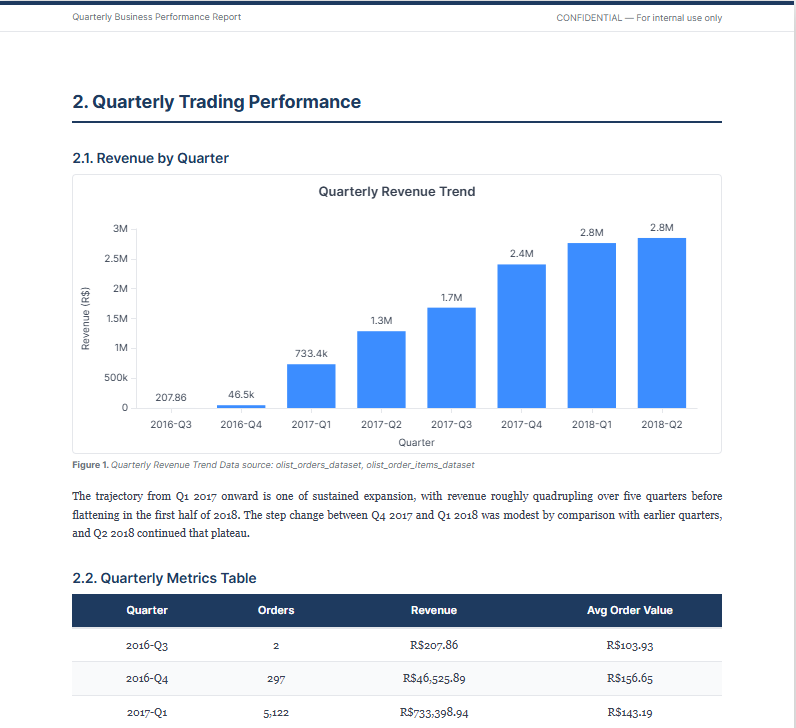
| Figures | Charts, numbered Figure 1, Figure 2 and so on, each with a caption and the table it came from. |
| Callouts | A sentence or two set apart from the text: a Finding, a Risk, or a Note. |
| Recommendations | A numbered list near the end. Each has a title and a line of reasoning. |
Figures come from the dashboard
A figure is one of the session's dashboard charts, chosen by Mira to support the text. It shows the chart as it was when the report was written, so figure and text agree.
If the chart has changed on the dashboard since, the figure gets an amber border. Updating a report builds the report again on the current charts. If the chart has been removed, the figure says Chart Deleted.
The cover logo
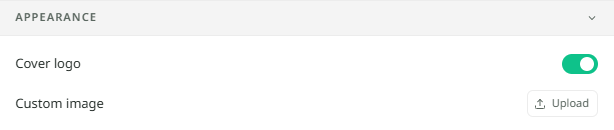
The logo on the cover is your organisation's. Any report can hide it or use a different picture. Open Style at the top of the session: the Cover logo switch shows or hides it, and the Custom image row uploads a picture or resets to the organisation logo. The change belongs to this report alone.
Changing what is there
Double-click the title on the cover to rename it, or a paragraph to change the words. Hover a part for a handle on its left to drag it, and a bin on its right to remove it. For anything larger, ask in the chat: "add a section on returns" changes the report where it sits.